
Docker & AWS ECR Guide: Zero-Downtime SaaS Deployments
Author
Muhammad Awais
Published
May 17, 2026
Reading Time
9 min read
Views
31.3k
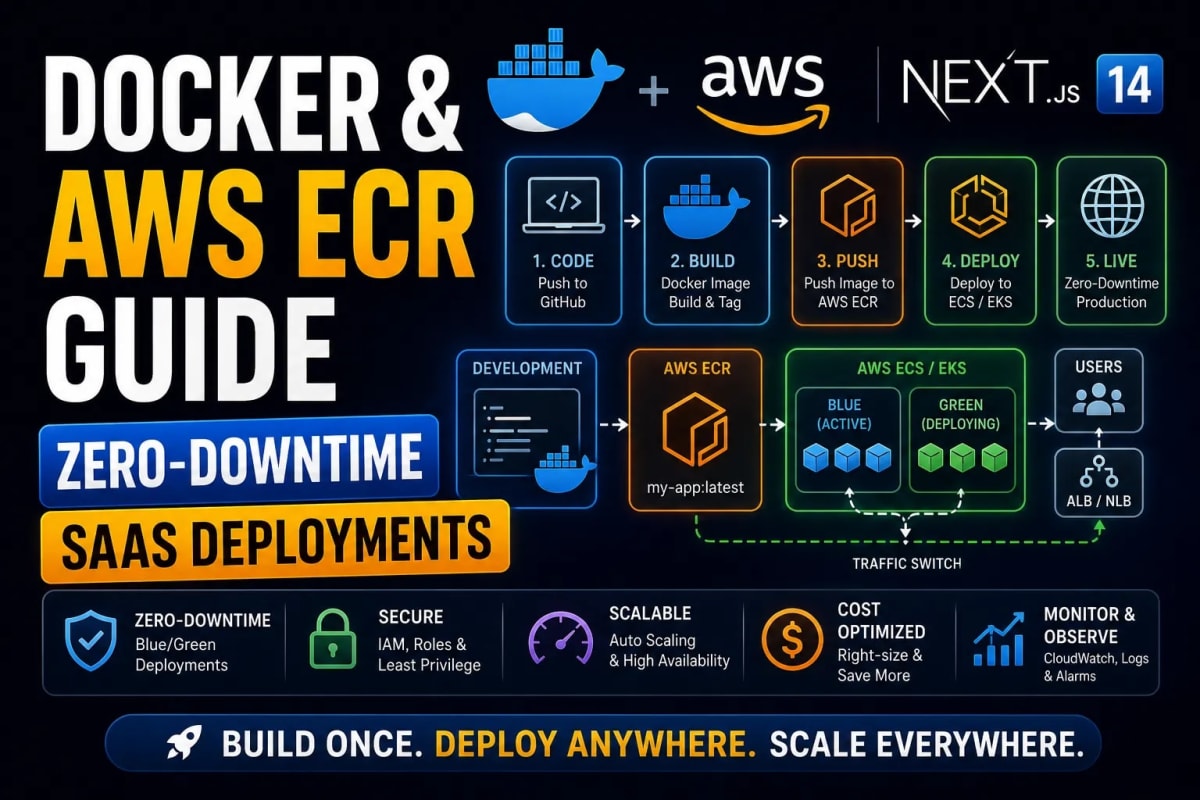
Escaping the PaaS Trap: The Complete Guide to Docker & AWS Zero-Downtime Deployments
In the early days of a startup, Platform-as-a-Service (PaaS) providers like Vercel, Heroku, and Render are incredible. You push your code, and it magically appears on the internet. However, as your SaaS application scales to thousands of concurrent users, the "PaaS Premium" becomes a financial nightmare. A database and computing cluster that costs $40 on raw AWS infrastructure can easily cost $400+ on a managed PaaS. If you have engineered a multi-tenant SaaS architecture, relying on premium managed hosting will destroy your profit margins. In 2026, graduating from a Junior to a Senior Architect means taking control of your own infrastructure. In this massive, 2000-word masterclass, we will teach you how to containerize your full-stack application using Docker, push it securely to AWS ECR, and orchestrate zero-downtime deployments via GitHub Actions.
Table of Contents
- 1. The Philosophy of Containerization (Why Docker?)
- 2. Writing the Perfect Multi-Stage Dockerfile (Example)
- 3. Orchestrating Services with Docker Compose (Example)
- 4. AWS ECR: The Secure Image Vault (Example)
- 5. Achieving Zero-Downtime Deployments (Blue/Green Architecture)
- 6. Automating the Pipeline with GitHub Actions CI/CD (Example)
1. The Philosophy of Containerization (Why Docker?)
Before Docker, deploying an application was a game of Russian Roulette. Your application might work perfectly on your Macbook (M3 chip, Node v20, macOS), but when you uploaded the exact same code to an Ubuntu Linux production server running Node v18, everything would crash. The infamous developer excuse, "It works on my machine," was born from this environment mismatch.
Docker solves this by packaging your application code, the exact Node.js runtime, the required system libraries, and the environment variables into a single, immutable box called a Container. If a Docker container runs on your local machine, it is mathematically guaranteed to run exactly the same way on AWS, Google Cloud, or a Raspberry Pi. This predictability is the foundation of enterprise-grade observability and system stability.
2. Writing the Perfect Multi-Stage Dockerfile
The biggest mistake developers make when adopting Docker is creating massive, bloated container images. If your Docker image is 2 Gigabytes, deploying it to AWS will take 15 minutes, and your server will run out of RAM instantly. You must use a Multi-Stage Build. This technique compiles the code in one stage, and then copies only the compiled production assets into a tiny, secure final stage.
Example: The Enterprise Node.js Dockerfile
Notice how we use alpine (a microscopic version of Linux) and separate the 'builder' stage from the 'runner' stage.
# STAGE 1: Dependencies & Build
FROM node:18-alpine AS builder
# Set working directory inside the container
WORKDIR /app
# Copy package files first to leverage Docker layer caching
COPY package.json package-lock.json ./
# Install ALL dependencies (including devDependencies needed for build)
RUN npm ci
# Copy the rest of the application code
COPY . .
# Build the production assets (e.g., Next.js build or TypeScript compile)
RUN npm run build

# STAGE 2: Production Runner (Microscopic Image)
FROM node:18-alpine AS runner
WORKDIR /app
# Set environment to production for performance optimization
ENV NODE_ENV production
# Copy ONLY the package files and install ONLY production dependencies
COPY package.json package-lock.json ./
RUN npm ci --only=production
# Copy ONLY the built artifacts from the 'builder' stage
COPY --from=builder /app/dist ./dist
# Expose the port the app runs on
EXPOSE 3000
# Start the application securely
CMD ["npm", "start"]
Why this works: By dropping the source code and devDependencies in Stage 1, we reduce the final image size from 1.5GB down to ~150MB. This drastically reduces the attack surface for hackers, aligning perfectly with strict cybersecurity API architectures.
3. Orchestrating Services with Docker Compose
Modern SaaS applications are rarely just one server. You typically have a Frontend container, a Backend API container, a PostgreSQL database, and a Redis cache. Starting all of these manually using docker run commands is impossible to manage.
Docker Compose is an orchestration tool that allows you to define your entire infrastructure in a single YAML file. With one command (docker-compose up -d), your entire universe boots up, connects to a private virtual network, and begins communicating securely.
Example: Full-Stack docker-compose.yml
version: '3.8'

services:
  # 1. The Database (PostgreSQL)
  postgres_db:
    image: postgres:15-alpine
    restart: always
    environment:
      POSTGRES_USER: ${DB_USER}
      POSTGRES_PASSWORD: ${DB_PASSWORD}
      POSTGRES_DB: saas_production
    ports:
      - "5432:5432"
    volumes:
      - pgdata:/var/lib/postgresql/data # Persist data across container restarts

  # 2. The Backend Node.js API
  api_server:
    build:
      context: ./backend
      dockerfile: Dockerfile
    restart: always
    depends_on:
      - postgres_db # Wait for DB to boot first
    environment:
      DATABASE_URL: postgres://${DB_USER}:${DB_PASSWORD}@postgres_db:5432/saas_production
    ports:
      - "8080:8080"

volumes:
  pgdata: # Named volume for database persistence
Architecture Note: Notice how the API server connects to @postgres_db:5432 instead of localhost. Docker Compose automatically creates an internal DNS resolution system. This internal network is crucial for achieving high concurrency, as discussed in our 100k Users Scaling Masterclass.
4. AWS ECR: The Secure Image Vault
Once your Docker image is built locally, you need a place to store it in the cloud so your production servers can download it. While Docker Hub is popular, enterprise teams use AWS ECR (Elastic Container Registry). It integrates flawlessly with AWS IAM (Identity and Access Management), ensuring that only your authorized servers can pull your proprietary source code.
Example: Pushing to AWS ECR via Terminal
After configuring your AWS CLI with your credentials, execute these exact commands to push your image to the cloud.
# 1. Authenticate Docker to your AWS ECR Registry
aws ecr get-login-password --region us-east-1 | docker login --username AWS --password-stdin 123456789012.dkr.ecr.us-east-1.amazonaws.com

# 2. Build your Docker image with a specific version tag
docker build -t my-saas-api:v1.0.0 .

# 3. Tag the local image with your remote ECR repository URI
docker tag my-saas-api:v1.0.0 123456789012.dkr.ecr.us-east-1.amazonaws.com/my-saas-api:v1.0.0

# 4. Push the image securely into the AWS Cloud
docker push 123456789012.dkr.ecr.us-east-1.amazonaws.com/my-saas-api:v1.0.0
5. Achieving Zero-Downtime Deployments (Blue/Green)
The ultimate goal of a DevOps engineer is to update the live application without the users ever noticing. If you stop the old container before the new container is ready, your users will see a "502 Bad Gateway" error for 30 seconds. This destroys user trust and heavily impacts your SEO, similar to the penalties discussed in our React Hydration UI Blocking guide.
The solution is Blue/Green Deployment using a load balancer (like Nginx or AWS ALB).
The Process:
1. Your current application (Blue) is running on Port 8080.
2. You start the new Docker container (Green) in the background on Port 8081.
3. The Load Balancer pings Port 8081. If it returns a HTTP 200 OK status, the Load Balancer instantly routes all new user traffic to Port 8081.
4. Only after traffic has safely shifted do you gracefully shut down the old Blue container. The downtime is literally zero milliseconds.
6. Automating the Pipeline with GitHub Actions (CI/CD)
Manually typing Docker build and push commands every time you want to deploy an update is tedious and prone to human error. Modern software teams use Continuous Integration and Continuous Deployment (CI/CD). We can instruct GitHub Actions to automatically test, build, and deploy our code to AWS the moment we push to the main branch.
Example: The GitHub Actions YAML Pipeline
Create a file at .github/workflows/deploy.yml in your repository.
name: Build and Push to AWS ECR

# Trigger this workflow every time code is pushed to the 'main' branch
on:
  push:
    branches:
      - main

jobs:
  deploy:
    name: Deploy to Production
    runs-on: ubuntu-latest

    steps:
      # Step 1: Clone the repository code onto the GitHub runner
      - name: Checkout Code
        uses: actions/checkout@v3

      # Step 2: Securely configure AWS credentials using GitHub Secrets
      - name: Configure AWS Credentials
        uses: aws-actions/configure-aws-credentials@v2
        with:
          aws-access-key-id: ${{ secrets.AWS_ACCESS_KEY_ID }}
          aws-secret-access-key: ${{ secrets.AWS_SECRET_ACCESS_KEY }}
          aws-region: us-east-1

      # Step 3: Login to AWS ECR
      - name: Login to Amazon ECR
        id: login-ecr
        uses: aws-actions/amazon-ecr-login@v1

      # Step 4: Build, tag, and push the image
      - name: Build and push Docker image
        env:
          ECR_REGISTRY: ${{ steps.login-ecr.outputs.registry }}
          ECR_REPOSITORY: my-saas-api
          IMAGE_TAG: ${{ github.sha }} # Use Git commit hash as the version tag
        run: |
          docker build -t $ECR_REGISTRY/$ECR_REPOSITORY:$IMAGE_TAG .
          docker push $ECR_REGISTRY/$ECR_REPOSITORY:$IMAGE_TAG
Conclusion: The Infrastructure of Independence
Relying on expensive managed hosting is a luxury for hobbyists. When you build a serious SaaS business, your infrastructure is your ultimate competitive advantage. By mastering Docker multi-stage builds, orchestrating databases with Docker Compose, and automating zero-downtime AWS deployments via GitHub Actions, you dramatically lower your operational costs while infinitely increasing your scalability. Stop paying the PaaS premium. Containerize your code, automate your pipelines, and own your cloud.
Frequently Asked Questions
Why should I use Alpine Linux for my Docker base image?
Alpine Linux is a security-oriented, lightweight Linux distribution that is only ~5MB in size. Using node:alpine instead of the standard node image drastically reduces your container's footprint, making deployments faster and leaving fewer vulnerabilities for attackers to exploit.
Should I run my production PostgreSQL database inside Docker?
For side projects and testing, absolutely. However, for a production B2B SaaS, it is highly recommended to use a managed database service like AWS RDS or Supabase. Managing database backups, replication, and disaster recovery inside a Docker volume introduces unnecessary operational risk.
How do I pass .env variables into a Docker container?
Never hardcode secrets into your Dockerfile. Instead, pass them during runtime using the --env-file flag (e.g., docker run --env-file .env my-app), or inject them securely via Docker Compose environment keys or AWS Secrets Manager.
What is the difference between AWS ECS and ECR?
ECR (Elastic Container Registry) is where you store your Docker images (like a private GitHub for containers). ECS (Elastic Container Service) is the computing engine that actually runs and manages those containers on live servers.
Can Docker help with my website's Core Web Vitals?
Indirectly, yes. By strictly controlling the Node.js runtime environment and utilizing multi-stage builds, you ensure maximum backend performance. Faster backend API responses reduce Server Response Time (TTFB), which is a critical component of Google's Core Web Vitals.
Tagged in
Continue Reading
All Articles
Level Up Your Workflow
Free tools mentioned in this article
Image to WebP Converter
Convert up to 25 JPG, PNG, TIFF and BMP images to WebP with live before/after preview, smart resizing, and real-time savings metrics 100% client-side, nothing uploaded.
WebMCP Tool Schema Generator
Generate declarative HTML form structures or imperative JavaScript/TypeScript schemas to register local web tools with AI browser agents.
Fancy Font & Stylish Text Generator
Transform your text into 50+ stylish and aesthetic fonts instantly. Perfect for Instagram bios, TikTok captions, and PUBG nicknames. One-click copy & paste.
HTTP Status Code Lookup
Look up any HTTP status code instantly 1xx to 5xx, Cloudflare codes, WebDAV, with JS/Next.js handling examples. Free, no signup.