
Cursor Agent Stuck on Loading? Complete Fix Guide (May 2026 Outages)
Author
Muhammad Awais
Published
May 30, 2026
Reading Time
12 min read
Views
20.3k
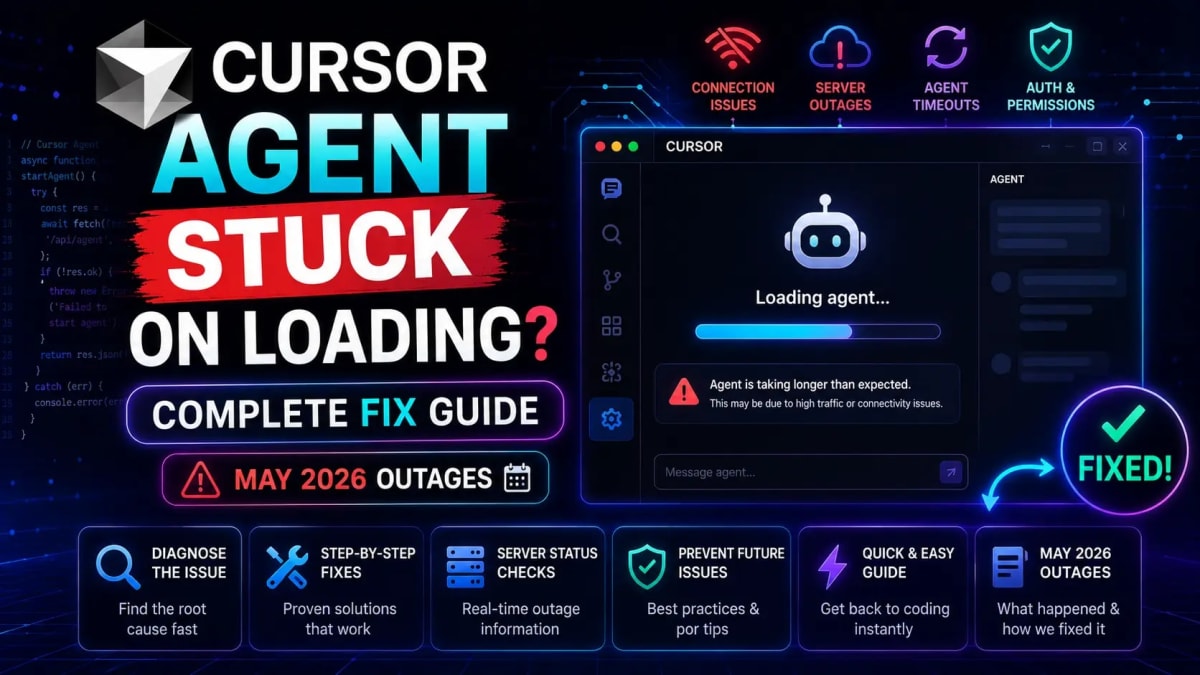
Cursor AI Slow, Stuck, or Not Responding - You're Not Alone
You open Cursor, start a task in Agent mode, and the spinner just keeps going. "Planning next moves" forever. Or you type in Composer and the three loading dots appear and never stop. Or the whole IDE feels like it's running through molasses compared to last week. If this sounds familiar, it's not your machine, it's not your internet, and you're not doing anything wrong.
Cursor AI had a rough few days in late May 2026. Between May 27 and May 30, the official status page logged at least 7 separate incidents Composer 2.5 Fast degradation, Composer 2 slowdowns, Cloud Agents going down, AI feature degradation, and model-specific issues affecting Claude Opus 4.6 and 4.7 heavily. Thousands of developers hit the same wall simultaneously.
This guide gives you the exact steps to diagnose what's happening and fix it whether it's a live Cursor outage, a configuration issue on your end, or a model-specific problem you can route around.
How to check in 30 seconds if this is a Cursor-side outage or your setup
The HTTP Compatibility Mode fix that solves slow responses for most users
Which models to switch to when Claude Opus 4.6/4.7 are degraded
Why Cursor Agent gets stuck on "Planning next moves" and how to break it out
Cache, extension, and network fixes that work when the status page shows green
How to prevent this from destroying your workflow next time it happens
Step 1 - Check Cursor's Status Page Before Doing Anything Else
This is the single most time-saving step. Before you restart your IDE, clear your cache, or start Googling, spend 30 seconds here:
status.cursor.com bookmark this now if you haven't already.
The official Cursor status page shows real-time component health. Here's what each component means:
IDE: The editor itself if this is down, basic functionality breaks
Cloud Agents: Agent mode and background task execution this was down May 30, 2026
Composer / Composer 2.5 Fast: The AI chat interface this had multiple degradation events May 27
CLI: Command-line operations affects terminal-based workflows
Automations: Background and scheduled AI tasks
The May 2026 incidents specifically: Cloud Agents went down on May 30 (resolved same day), Composer 2.5 Fast degraded on May 27 with 4+ hours of issues, and Gemini 2.5 Flash had summarization problems on May 26. If you were affected during any of these windows, the outage was real not imagined.
If the status page shows all green but you're still experiencing issues, move to Step 2.
Step 2 - The HTTP Compatibility Mode Fix (Works for Most People)
This is the fix that actually helped the most developers during the May 2026 slowdown period, based on community reports. Cursor uses HTTP/2 by default, but HTTP/2 connections can have multiplexing issues on certain networks, VPNs, and corporate firewalls that cause requests to silently hang.
Here's exactly how to switch to HTTP/1.1:
Open Cursor IDE
Go to Cursor Settings (not VS Code settings the Cursor-specific settings panel)
Navigate to Network
Find HTTP Compatibility Mode
Switch it to HTTP/1.1
Restart Cursor completely quit and reopen, don't just reload the window
After this change, most users report that stuck requests start completing normally within 1-2 minutes. If your requests were hanging at "Taking longer than expected" or "Planning next moves," this is the most likely fix when the status page shows green.
Why does this work? HTTP/2 multiplexes multiple requests over a single connection. When that connection stalls due to packet loss, middleboxes, or VPN tunneling all multiplexed requests freeze simultaneously. HTTP/1.1 uses separate connections per request, so one stuck request doesn't block everything else.
Step 3 - Switch Your AI Model (Critical During Outages)
During the May 2026 degradation events, Claude Opus 4.6 and Opus 4.7 were specifically and disproportionately affected. If you're using either of these models and experiencing slowness or stuck responses, switching models is the fastest workaround that doesn't require waiting for an outage to resolve.
How to switch models in Cursor:
Open the chat or Composer panel
Click the model name shown at the bottom of the input area
Select a different model from the dropdown
Model switching recommendations during degradation:
If Claude Opus 4.6/4.7 is slow: Switch to Claude Sonnet 4.6 or GPT-4o. Sonnet is significantly faster and handles most coding tasks just as well as Opus for day-to-day work.
If all Claude models are slow: Switch to Gemini 2.5 Pro or GPT-4o different provider backend, unaffected by Anthropic-side degradation.
If Gemini 2.5 Flash is affected (as it was May 26): Switch to GPT-4o Mini for fast, lightweight tasks while the main models recover.
One thing worth knowing: Cursor's backend routes requests differently depending on the model. Claude requests go through Anthropic's API, GPT requests through OpenAI's. A degradation on one provider's side doesn't affect the other. Having a backup model in mind before problems hit saves a lot of frustration.
Step 4 - Fix Cursor Agent Stuck on "Planning Next Moves"
This specific stuck state where Agent mode shows "Planning next moves" and never progresses has two different causes that need different fixes.
Cause A: Server-side agent timeout
When Cloud Agents are degraded (as they were May 30), the agent execution backend doesn't respond in time. The IDE keeps showing "Planning next moves" because it's waiting for a response that's never coming.
Fix: Stop the current agent task (press the stop button or Escape), check the status page, and if Cloud Agents are affected, wait for resolution before retrying. There's no local workaround for this one the execution backend is remote.
Cause B: Agent loop - can't verify its own progress
This is a local issue unrelated to outages. The agent completes a step, checks the result, doesn't see what it expected, and retries the same step indefinitely. It's not stuck waiting it's stuck thinking.
Fix: Stop the agent, then restart it with a more explicit prompt. Instead of:
// Vague — agent doesn't know when it's done
"Refactor the auth module to use the new pattern"
Try:
// Specific — clear success condition
"Update /lib/auth/session.ts to replace cookie-based
session storage with JWT tokens. The task is complete
when: 1) The file uses jose for JWT signing, 2)
getSession() returns a decoded JWT payload,
3) No references to req.session remain in the file."
Breaking large tasks into smaller, verifiable chunks with explicit success conditions is the single biggest improvement you can make to agent reliability outage or not. If you want to go deeper on building reliable agent workflows, our guide to autonomous AI agents and agentic workflows covers the prompt patterns that actually work.
Step 5 - Chat Stuck on Loading Dots? Fix It Here
The chat loading dots that never resolve is a different issue from Agent mode. Here's the diagnostic flow:
Test with a fresh chat. Click the "+" to open a new chat and send a simple message: "Say hello." If the new chat responds but your existing chat doesn't, the issue is with that specific conversation's context it's too large or has a corrupted message. Start fresh.
Test with a fresh project. Go to File → Open Folder and open an empty directory. Try chatting there. If it works, the issue is context-specific to your large project Cursor is loading too many files into context and timing out before it can respond.
Run Network Diagnostics. Go to Settings → Network → Run Diagnostics. This tells you exactly what's blocked or slow before you spend time on unrelated fixes. It's the fastest way to rule out network issues.
Copy the Request ID. In the chat panel, look for the context menu at the top right. You'll find "Copy Request ID" copy it. This ID lets you track the specific stuck request and report it accurately to Cursor support if needed.
Clear the extension cache. Close Cursor completely. Navigate to the application data folder and delete temporary cache files (not your main workspace configuration). Reopen Cursor and test again.
One pattern that appears repeatedly in community reports: the first prompt after restarting Cursor works fine, then every subsequent one silently fails no error, no response, just loading dots. This specific pattern points to a memory leak or session accumulation issue. The fix is to completely quit Cursor (not just reload the window) and restart.
Step 6 - Disable Extensions and Check for Conflicts
Extensions especially developer tools, linters that run on save, and anything that hooks into the editor's AI pipeline can conflict with Cursor's AI functionality and cause hangs that look identical to server-side outages.
Test this systematically:
Open the Extensions panel (Ctrl+Shift+X / Cmd+Shift+X)
Disable all non-essential extensions anything not directly related to your current project
Restart Cursor
Test AI responses
If it works, re-enable extensions one at a time to find the culprit
The most common conflicting extensions are those that intercept keystrokes or modify editor output copilot alternatives, spell checkers, and certain formatter extensions that fire on every change. If you're using another AI completion tool alongside Cursor, disable it entirely running two AI completion systems simultaneously is a reliable way to cause interference.
Step 7 - Avoid Peak Hours for Heavy Agent Work
This sounds too simple to be real advice, but it's consistently effective. Cursor's backend experiences significantly higher load during US business hours roughly 9 AM to 6 PM Eastern Time. If you're doing large context-window operations, multi-file agent tasks, or anything that requires sustained AI computation, timing matters.
The practical version: schedule your most demanding Cursor work for morning (before 8 AM Eastern) or evening (after 7 PM Eastern). For developers in Pakistan, Europe, or Asia, this actually aligns well with working hours your daytime is US nighttime.
This isn't a workaround for outages it's genuine load management. Even without an active incident, response times during peak US hours are measurably slower than off-peak. If your Cursor sessions always feel slower than expected, this is likely why.
What to Do When Nothing Works - Windsurf as a Temporary Fallback
Sometimes the outage is long, the fixes don't apply to your situation, and you need to ship code today. Having a fallback IDE ready is worth the 10 minutes it takes to set up.
Windsurf is the most compatible alternative it uses the same VS Code extension ecosystem, similar keyboard shortcuts, and its own AI agent (Cascade) that runs on a different backend entirely. During Cursor outages, community reports consistently show Windsurf being unaffected. Several developers in the May 2026 thread explicitly noted switching to Windsurf while Cursor resolved its Cloud Agents issue.
Your .cursorrules file which defines how the AI understands your project works in Windsurf with minimal modification. Our complete guide to .cursorrules files for Next.js projects covers the setup. And if you want a full comparison of all three major AI IDEs before committing to a fallback, our Cursor vs Windsurf vs GitHub Copilot 2026 comparison breaks down exactly where each one wins and loses.
Preventing Lost Work During Future Outages
The worst part of a Cursor outage isn't the downtime it's losing work that was mid-task in an agent session. A few habits that protect you:
Commit frequently during agent tasks. Before starting any agent session that touches multiple files, make a clean git commit. If the agent session corrupts or the output is wrong, you can revert cleanly.
Save your prompts. For complex multi-step agent tasks, write your prompts in a text file before pasting them into Cursor. If the session dies mid-task, you don't have to reconstruct what you asked for.
Set up status page alerts. Both statusgator.com and isdown.app let you subscribe to Cursor status notifications email or Slack. You'll know about outages within minutes of them being acknowledged, instead of discovering them when you're mid-task. You can also follow active incident threads on the Cursor community forum where developers share workarounds in real time.
Use the Pomodoro technique for agent sessions. Breaking work into 25-minute focused blocks naturally creates checkpoints. Our free Pomodoro focus timer runs in your browser no installation needed and makes it easy to build commit checkpoints into your flow.
The broader lesson from May 2026: AI coding tools are still infrastructure, and infrastructure goes down. The developers who lost the least productivity were the ones with a clear fallback plan, not the ones who spent an hour trying to debug what turned out to be a server-side outage. Check the status page first, always.
Quick Reference - Fix by Symptom
Symptom | Most Likely Cause | First Fix to Try |
|---|---|---|
Agent stuck on "Planning next moves" | Cloud Agents outage OR agent loop | Check status.cursor.com first, then rewrite prompt |
Chat loading dots never resolves | Session context overload OR network hang | Open new chat, test with empty project |
Everything slow all models | HTTP/2 connection issue | Switch to HTTP/1.1 in Settings → Network |
Claude Opus specifically slow | Anthropic-side degradation | Switch to GPT-4o or Gemini 2.5 Pro |
First message works, rest hang | Memory leak / session accumulation | Fully quit and restart Cursor (not reload) |
Autocomplete gone no inline suggestions | Broken Copilot++ connection | Disable conflicting AI extensions, restart |
"Error calling tool" in agent | API auth OR outdated extension | Update Cursor to latest version, re-login |
Frequently Asked Questions
Why is Cursor AI so slow in May 2026?
Cursor experienced multiple confirmed service degradation events between May 26–30, 2026 including Composer 2.5 Fast slowdowns on May 27, Cloud Agents going down on May 30, and model-specific issues affecting Claude Opus 4.6 and Opus 4.7. These were server-side incidents, not user-side problems. The official Cursor status page (status.cursor.com) logged each of these with resolution times ranging from 30 minutes to several hours. If you experienced slowness during this period, it was real and widespread.
How do I fix Cursor Agent stuck on "Planning next moves"?
First, check status.cursor.com. If Cloud Agents show degraded performance, this is a server-side issue and no local fix will help wait for resolution. If the status page shows green, the issue is likely an agent loop caused by an overly vague prompt. Stop the agent, rewrite your prompt with explicit success conditions and smaller scope, and restart. Switching to HTTP/1.1 mode in Settings → Network also resolves this for many users when the status page is clear.
Why does Cursor chat show loading dots but never respond?
Three common causes: a stalled network connection (fix with HTTP/1.1 mode), an overloaded conversation context (fix by starting a new chat), or a server-side Composer degradation (check status.cursor.com). The pattern of "first message works, subsequent ones hang" specifically points to session accumulation fully quit and restart Cursor rather than just reloading the window.
Which Cursor model should I use when Claude Opus is slow?
Switch to Claude Sonnet 4.6 first it's faster than Opus and handles the vast majority of coding tasks just as effectively. If all Claude models are sluggish (indicating Anthropic-side degradation), switch to GPT-4o or Gemini 2.5 Pro, which run on completely different provider backends. Cursor supports multiple providers specifically for this reason having a backup model in mind before problems hit saves significant time.
Is there a way to know about Cursor outages before they affect my work?
Yes. Subscribe to Cursor status notifications at status.cursor.com you can add your email to receive incident alerts. StatusGator and IsDown also offer Cursor monitoring with Slack and email notifications. IsDown reports that Cursor has had 180+ incidents since March 2025, with an average resolution time of 89 minutes knowing early means you can switch to a fallback IDE immediately rather than spending time debugging a problem you can't fix.
What is HTTP Compatibility Mode in Cursor and should I enable it?
HTTP Compatibility Mode switches Cursor's network requests from HTTP/2 to HTTP/1.1. HTTP/2 multiplexes multiple requests over one connection when that connection stalls, all requests freeze simultaneously, which manifests as Cursor appearing completely stuck. Switching to HTTP/1.1 uses separate connections per request, so one slow response doesn't block everything else. Enable it in Settings → Network → HTTP Compatibility Mode if you experience persistent slowness when the status page shows green. The downside is slightly higher latency per request, but it's worth it for reliability.
Does clearing Cursor's cache actually help with slow responses?
It depends on the cause. Cache clearing helps when corrupted session data is causing freezing or looping behavior specifically when the IDE freezes consistently after a certain amount of usage but works fine immediately after a fresh start. It does not help with server-side outages or network-level issues. If you're experiencing slowness that appears fresh every session regardless of cache state, the cause is elsewhere. When in doubt, try cache clearing as a step in the troubleshooting sequence after checking the status page and testing HTTP compatibility mode.
Tagged in
Continue Reading
All Articles


Level Up Your Workflow
Free tools mentioned in this article
PX to EM Converter
Convert pixels to em and em to px with customizable parent font size. Free, instant, local calculation, copy-ready CSS snippets & Tailwind classes.
Sitemap Validator
Free XML sitemap validator & checker check sitemap.xml syntax, broken URLs, duplicates & bad lastmod dates. Health score, CSV export. No signup needed.
Fancy Font & Stylish Text Generator
Transform your text into 50+ stylish and aesthetic fonts instantly. Perfect for Instagram bios, TikTok captions, and PUBG nicknames. One-click copy & paste.
Markdown to HTML Converter
Convert Markdown to clean HTML instantly with live preview. Supports GitHub Flavored Markdown, tables, code blocks, and task lists. Free and browser-based.