
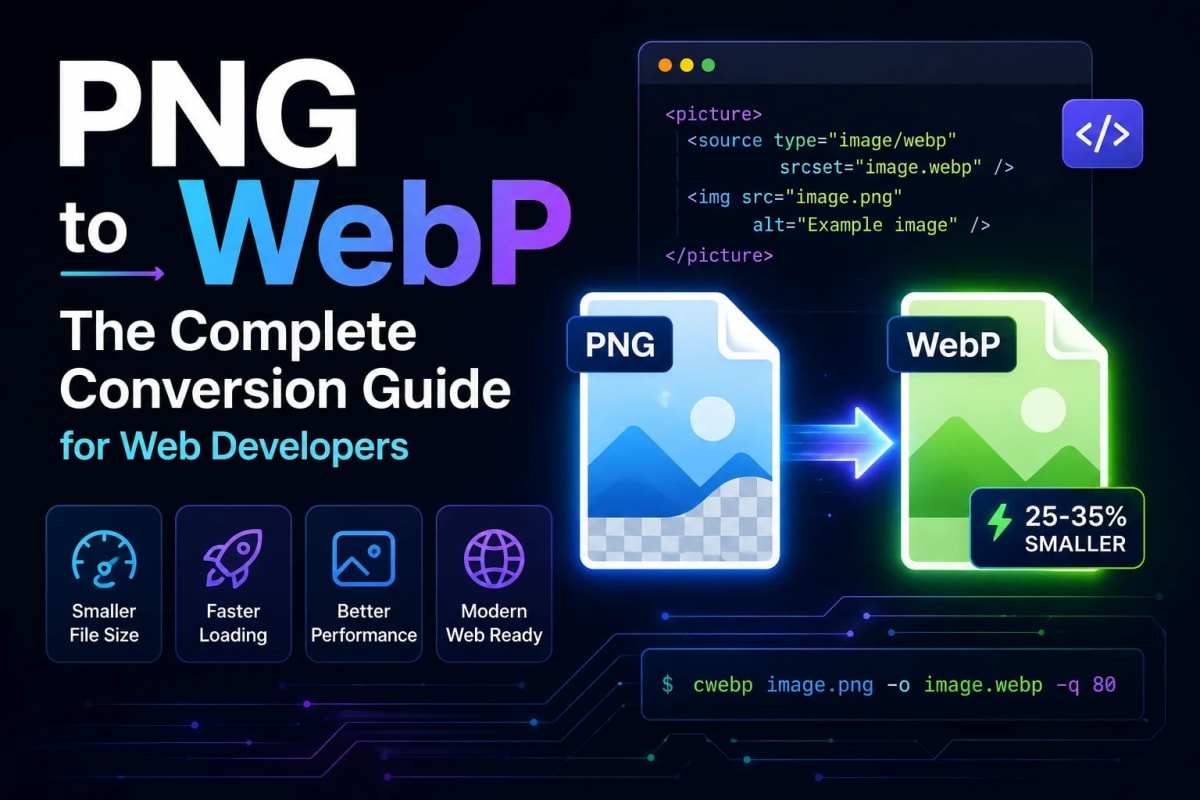
PNG to WebP: The Complete Conversion Guide for Web Developers
Author
Muhammad Awais
Published
May 22, 2026
Reading Time
9 min read
Views
14.1k
Why PNG Files Are Silently Destroying Your Page Speed
PNG was designed in 1996 to replace GIF. It does one thing exceptionally well lossless compression with full transparency support. For screenshots, UI mockups, logos with transparent backgrounds, and anything where pixel accuracy matters, PNG has been the default for almost 30 years.
The problem is file size. A PNG screenshot of a typical landing page runs 1.5-3MB. A product image exported from Figma with a transparent background? Often 800KB to 1.2MB. Multiply that by the number of images on your page and you're looking at serious payload weight the kind that drops your Lighthouse score below 50 and triggers Google's "serve images in next-gen formats" warning.
I ran into this recently while auditing a SaaS marketing site. The hero section alone had three PNGs a product screenshot, a feature graphic, and a team photo with transparent background. Combined: 4.2MB. After converting to WebP, that dropped to 680KB. The LCP went from 5.1 seconds to 1.9 seconds. That single change moved the Lighthouse score from 44 to 71. Same images, same visual quality, radically different performance.
What you'll learn: Exactly how PNG to WebP conversion works under the hood
When to use lossless WebP vs lossy WebP for PNG source files
How to convert without uploading to a third-party server
The transparency gotcha that trips up most developers
When you should absolutely NOT convert a PNG to WebP
PNG vs WebP - What Actually Changes When You Convert
Understanding what happens during conversion helps you pick the right settings rather than just guessing. PNG uses a lossless compression algorithm called DEFLATE it stores every pixel exactly as-is and compresses the data without discarding anything. This is why PNGs look perfect but weigh a lot.
WebP offers two completely different modes:
Lossless WebP: Uses a more modern compression algorithm than PNG's DEFLATE, achieving the same pixel-perfect accuracy but in a smaller file. According to Google's WebP lossless study, lossless WebP files are on average 26% smaller than equivalent PNGs. No quality trade-off — every pixel is preserved.
Lossy WebP: Analyzes the image and discards data the human visual system is least sensitive to subtle color variations in smooth areas, micro-noise in backgrounds. At 80-85% quality, the result is visually identical to the original PNG but 60-75% smaller.
Here's the practical decision tree I use: if the PNG contains text, UI elements, or anything where a single blurry pixel would be noticeable use lossless WebP. If it's a photograph, a product shot, or a background graphic where perfect pixel accuracy doesn't matter use lossy at 80%.
The key insight is that "converting PNG to WebP" doesn't mean one thing. Lossless PNG → lossless WebP is a straight upgrade with zero quality change. Lossless PNG → lossy WebP is a trade-off that's almost always worth making for photographic content.
Transparency: The One Thing You Must Get Right
This is where most PNG to WebP guides fall short. Transparency is the main reason developers choose PNG in the first place logos on colored backgrounds, product shots with white backgrounds removed, UI overlays, icon sets with transparent fills.
The good news: WebP fully supports alpha channel transparency. Both lossless and lossy WebP handle transparency correctly. A PNG with a transparent background converts to a WebP with an identical transparent background.
The bad news: some conversion tools particularly older ones and some server-side converters don't handle this correctly. They flatten the transparency to a white or black background during conversion. You end up with a WebP that looks fine in isolation but breaks completely when placed over a colored background.
Always check your converted WebP files on a non-white background before deploying. Drop the file onto a dark background in your browser or CSS and verify the transparent areas are rendering correctly. This takes 30 seconds and saves you from shipping broken images to production.
Our Image to WebP Converter processes transparency correctly using the HTML5 Canvas API the alpha channel is preserved through the entire conversion pipeline. You can verify this immediately in the before/after split viewer before downloading.
How to Convert PNG to WebP Without Uploading Your Files
The privacy issue with most online converters is real and underappreciated. When you upload a PNG to a cloud-based converter, your file travels over the internet to a remote server, gets processed there, and gets sent back. Most free tools don't publish clear data retention policies.
For general stock photos and public content this probably doesn't matter much. But for client mockups, proprietary UI designs, unreleased product screenshots, or anything covered by an NDA uploading to a random third-party server is a genuine risk.
The alternative is client-side conversion the processing happens inside your browser using JavaScript and the Canvas API. Your file never leaves your device. Here's how to use our converter:
Open the tool: Navigate to the Image to WebP Converter. No account needed.
Load your PNG: Drag and drop your file onto the upload zone, click to browse, or press
Ctrl+Vto paste directly from your clipboard useful if you've just exported from Figma or taken a screenshot.Choose your quality setting: For PNG source files, start with 85% for UI screenshots and text-heavy images, or 80% for photographic content. If you need lossless conversion, drag the slider to 100% the output will be lossless WebP.
Check the before/after: Click the completed row to open the split comparison viewer. Drag the slider to compare original and WebP. Check transparency areas carefully on the preview.
Download: Single file download or grab the full batch as a ZIP. Output files are named
[original-name]-optimized.webp.
You can open your browser's network tab during conversion and confirm there are no outbound requests to external servers. The conversion is entirely local.
Quality Settings for PNG Source Files - A Practical Guide
PNG files come in very different types, and the right quality setting varies significantly. Here's what I've found works best across common PNG types:
UI screenshots and mockups (crisp text, sharp edges): 88-92% quality. Text starts to show subtle blurring below 85%, which is particularly visible at small font sizes. The file size difference between 88% and 95% is usually minimal, so there's no reason to push lower.
Product photos with transparent backgrounds (removed background): 80-85% quality. The subject is photographic, so lossy compression handles it well. The transparency is preserved regardless of quality setting.
Illustrations, flat design graphics, icons with gradients: 82-88% quality. Flat color areas compress extremely efficiently. Gradients can show banding at very low quality settings keep it above 80%.
PNG screenshots of code or terminal output: 90-95% quality. Text readability is critical here. At lower settings, monospace characters in code screenshots can look slightly fuzzy, which is distracting in tutorial content.
Logo files with limited colors: Consider lossless (100%) logos are often used in contexts where pixel-perfect output matters, and the file size difference from lossless vs 90% lossy is usually small for simple vector-style graphics.
The quick test: convert at your target quality, zoom into 200% in the browser, and look at the sharpest edges in the image. If you can see blurring or blockiness that wasn't in the original, go up 5% and re-test. If it looks identical, you're good.
When You Should NOT Convert a PNG to WebP
Not every PNG should become a WebP. A few cases where you should leave it alone or use a different format entirely:
SVG-originated graphics: If your PNG was exported from an SVG source in Figma, Illustrator, or Inkscape especially icons, logos, or geometric UI elements you should use the SVG directly rather than converting to any raster format. SVGs are infinitely scalable, often smaller than both PNG and WebP, and render sharper on high-DPI screens. Our SVG to JSX/TSX Converter makes it easy to use SVGs inline in React components.
Images used in email HTML: Email clients have notoriously poor WebP support. Gmail on older Android clients, Outlook, and Apple Mail on older iOS versions don't render WebP. For email, stick with PNG or JPEG.
Favicons: Browser favicon support for WebP is inconsistent. Keep your favicon as ICO or PNG.
Images already under 30KB: The absolute file size savings from converting a 22KB PNG to WebP might be 5-8KB. Not worth the conversion workflow overhead for such small files.
PNG source files used for print or high-resolution export: If the PNG is a working file rather than a web deliverable, leave it as PNG. WebP is a web format it's not appropriate for print workflows.
Batch Converting PNGs Before Deployment - A Clean Workflow
The most effective approach to PNG optimization isn't converting files one by one it's making conversion a standard pre-deployment step. Here's the workflow I use now on every project:
Every image that's going into a /public folder, a CMS upload, or a Cloudinary library gets run through the converter first. No exceptions. The batch converter handles up to 25 PNG files at once drop the entire /images export folder and convert everything in one pass. The ZIP download lands with all files named [original]-optimized.webp, ready to upload.
For Next.js projects, the <Image> component handles a lot of this automatically for images imported through the component. But images referenced in MDX content, inline HTML, or uploaded through a CMS still need manual conversion. The batch workflow catches everything the framework misses.
If you're working on a WordPress site and need a systematic approach to image optimization, our guide on why you must convert to WebP in 2026 covers the full impact on Core Web Vitals scores with real Lighthouse data.
Common PNG to WebP Mistakes
Not checking transparency after conversion: Always preview on a dark background before deploying. A transparent PNG that converts to a white-filled WebP is one of the easiest bugs to miss during review.
Using the same quality setting for all PNG types: UI screenshots need higher quality than product photography. Using 75% across the board will make text look slightly blurry in interface screenshots.
Forgetting to update
<img>src attributes in your HTML: Converting the files is only half the job. Everysrc="image.png"in your templates, MDX, or CMS content needs to becomesrc="image-optimized.webp".Converting PNGs that came from SVG sources: If it started as a vector and was exported to PNG just to get a raster version, go back to the SVG. You'll get better quality and smaller file size.
Frequently Asked Questions
Does converting PNG to WebP preserve transparency?
Yes , WebP fully supports alpha channel transparency, both in lossless and lossy modes. A PNG with a transparent background converts to a WebP with an identical transparent background. The key is using a converter that handles the alpha channel correctly. Always verify by previewing the converted file on a non-white background before deploying some older or server-side tools incorrectly flatten transparency to a solid color.
Should I use lossless or lossy WebP when converting from PNG?
It depends on the content. For UI screenshots, mockups, graphics with text, and logos use lossless WebP (quality 100%) or high lossy (88-95%) to preserve sharpness. For product photography, background images, and complex photographic content lossy at 80-85% gives you 60-75% file size reduction with no visible quality difference at normal viewing sizes. Lossless WebP is still 26% smaller than equivalent PNG, so even lossless conversion is worth doing.
How much smaller will my PNG files be after converting to WebP?
For photographic PNGs converted with lossy WebP at 80-85% quality, expect 60-75% file size reduction a 1.2MB PNG typically comes out around 250-400KB as WebP. For lossless conversion of UI screenshots and graphics, expect 20-30% reduction a 400KB PNG typically becomes 280-320KB as lossless WebP. The actual savings vary significantly based on image content; images with large flat-color areas compress better than complex photographic content.
Is it safe to convert confidential PNG files using an online tool?
It depends entirely on which tool you use. Most online converters upload your file to a remote server for processing, which means your image leaves your device and exists on a third-party server during conversion. For confidential client work, proprietary designs, or anything sensitive, use a client-side converter where the processing happens locally in your browser. Our converter works this way you can verify by opening the browser network tab during conversion and confirming no image data is transmitted.
Will PNG to WebP conversion affect my image SEO?
Converting from PNG to WebP improves rather than hurts image SEO. Smaller files load faster, which improves your Largest Contentful Paint score a direct Google ranking signal. Google's own Lighthouse tool specifically recommends serving images in next-gen formats like WebP. The format itself has no negative SEO implications as long as alt text remains accurate and file names are consistent. If you're renaming files during conversion, update the src attributes in your HTML and check for any broken references.
Can I convert a batch of PNGs at once without uploading them?
Yes. Our Image to WebP Converter supports up to 25 PNG files per batch (up to 50MB each, 150MB total). All processing happens locally in your browser no server upload required. Drop your files onto the converter, set your quality preference once, and the entire batch converts sequentially. Download individual files or grab everything as a date-stamped ZIP archive.
Tagged in
Continue Reading
All Articles


Level Up Your Workflow
Free tools mentioned in this article
Sitemap Validator
Free XML sitemap validator & checker check sitemap.xml syntax, broken URLs, duplicates & bad lastmod dates. Health score, CSV export. No signup needed.
WebMCP Tool Schema Generator
Generate declarative HTML form structures or imperative JavaScript/TypeScript schemas to register local web tools with AI browser agents.
Unix Timestamp Converter
Convert Unix timestamps to readable dates and back instantly. View the current epoch time, convert any timestamp, and see results in any timezone.
Fancy Font & Stylish Text Generator
Transform your text into 50+ stylish and aesthetic fonts instantly. Perfect for Instagram bios, TikTok captions, and PUBG nicknames. One-click copy & paste.