
The WebP Revolution: Why JPEGs are Killing Your Website Speed
Author
Muhammad Awais
Published
May 13, 2026
Reading Time
9 min read
Views
984
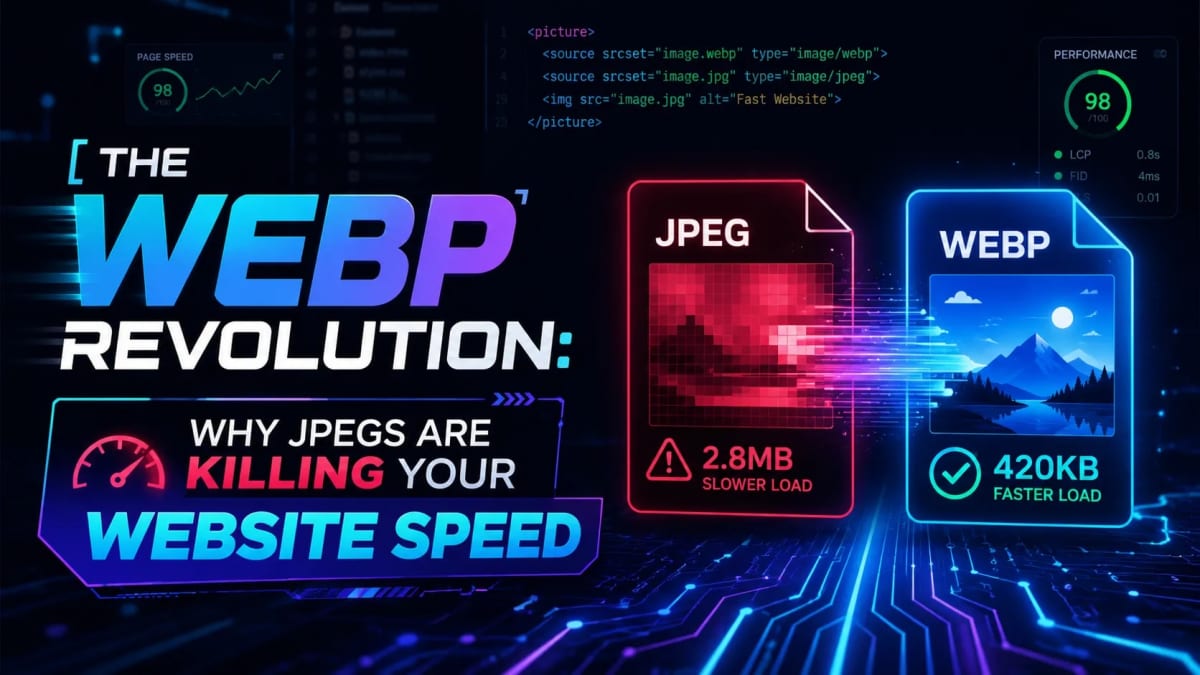
The Day a Single Image Format Change Added 23 Points to My Lighthouse Score
Last year I was helping a friend audit his e-commerce site. It had good products, decent copy, reasonable backlinks but it was sitting on page 3 for every keyword that mattered. We ran a Lighthouse audit and the score was 41. Painful. The biggest culprit was images. Every single product photo was a JPEG sitting between 800KB and 1.4MB. The site had 12 product images per category page. Do that math users were downloading almost 15MB of image data just to browse one page on mobile.
We ran every image through a WebP converter, re-uploaded them, and ran the audit again. Lighthouse jumped to 64. The LCP went from 6.8 seconds to 2.9. That one change just the image format made the biggest single difference of the entire audit. No code changes, no CDN, no caching tweaks. Just switching from JPEG to WebP.
If you're still serving JPEGs and PNGs to your users in 2026, this guide explains exactly why that's hurting you and what to do about it.
What you'll learn: Why WebP consistently beats JPEG and PNG on file size and quality
How WebP directly affects your Core Web Vitals and Google ranking
The privacy problem with most "free" online image converters
When you should NOT use WebP (and what to use instead)
A practical workflow for converting images before every deployment
Why JPEG Is a 1992 Format Living in a 2026 World
JPEG was standardized in 1992. The internet it was designed for ran on 28.8kbps dial-up modems. A "fast" connection transferred about 3.5KB per second. At those speeds, a 50KB image took 14 seconds to load so JPEG's compression was genuinely impressive for the era.
Fast forward 34 years. The average smartphone shoots 12-megapixel photos. A raw shot from an iPhone 15 is around 4-6MB. Modern cameras used for product photography produce 20-50MB RAW files. We're photographing in resolution that would have been unimaginable in 1992, then trying to squeeze those photos through a compression algorithm designed before the modern web existed.
The result shows up in real numbers. Google's Core Web Vitals data shows that the majority of websites still fail LCP benchmarks, and unoptimized images are consistently the top cause. An LCP above 4 seconds is considered poor. Most JPEG-heavy sites land somewhere between 4-8 seconds on mobile. That's the range where users close the tab.
PNG has its own problem. It's lossless, which sounds good, but "lossless" means it keeps every pixel of data. A PNG screenshot of a landing page can easily hit 2-3MB. A PNG product photo with a transparent background? Frequently 1.5MB or more. For UI elements and logos that need crisp edges, PNG made sense when there was no better alternative. Now there is.
What WebP Actually Does Differently
WebP was developed by Google in 2010 and released publicly in 2011, but it took years to get full browser support. By 2024, every major browser Chrome, Firefox, Safari, Edge supports it. There's no longer any technical reason to avoid it.
The format uses a compression algorithm based on the VP8 video codec, which was designed to analyze image data in blocks and discard information the human visual system is least sensitive to. The practical result is striking:
vs PNG: WebP lossless is on average 26% smaller. WebP lossy is often 60-70% smaller with virtually identical visual quality.
vs JPEG: At equivalent perceptual quality, WebP typically produces files 25-35% smaller. At aggressive compression, the gap widens to 50-80%.
Transparency support: Unlike JPEG, WebP supports alpha channels. So you can replace PNGs used for logos and UI elements without losing transparency.
Animation support: WebP can replace animated GIFs with dramatically smaller files a 3MB GIF often compresses to under 200KB as an animated WebP.
The numbers I mentioned from my friend's site going from 15MB of images to under 3MB those aren't unusual. For e-commerce sites with lots of product photos, a full conversion to WebP is often the single highest-ROI optimization available.
How Image Format Affects Your Google Ranking
Google has been explicit about this. Since the 2021 Page Experience update, Core Web Vitals are direct ranking signals. The three signals are Largest Contentful Paint (LCP), Interaction to Next Paint (INP), and Cumulative Layout Shift (CLS). Images affect all three.
LCP measures how long it takes for the largest visible element to load and for most pages, that largest element is an image. Google's own Lighthouse audit tool flags JPEG and PNG images with a specific warning: "Serve images in next-gen formats." It will literally tell you how many kilobytes you'd save by switching to WebP. That warning isn't just a suggestion it's one of the factors Google uses when evaluating your page's technical quality.
Lighthouse scoring also feeds into Google Search Console's Page Experience report. Pages with consistently good Core Web Vitals get a small but meaningful ranking boost. More importantly, pages with consistently bad scores are flagged and ranked lower, especially on mobile where image performance matters most.
If you're building in Next.js, the framework actually handles a lot of this automatically through the <Image> component, which serves WebP by default when the browser supports it. But that only helps images loaded through Next.js's image optimization pipeline — images you embed directly in markdown content, in a CMS, or in static HTML still need to be manually converted. That's where a local converter tool becomes part of your standard workflow.
You can convert your images before upload using our free Image to WebP Converter it runs entirely in your browser, so there's no upload wait and no privacy concerns, which brings me to something most guides don't talk about.
The Privacy Problem Most Developers Ignore
Here's something I didn't think about until a client asked me about it. He was building an app for a law firm and needed to compress some document screenshots. He asked: "If I use one of those free online converters, where do my files actually go?"
It's a good question. Most free image conversion tools work by uploading your file to a remote server, processing it there, and returning the result. That process requires your file to:
Leave your device and travel over the internet
Sit on a third-party server during processing
Potentially be logged, stored, or retained after the session ends
For general web images photos of your products, blog post covers, public content this isn't a big deal. But for client assets, proprietary designs, confidential screenshots, or anything that contains sensitive information, uploading to an unknown third-party server is a real risk. GDPR and CCPA both have implications for how data is handled, and "I used a free online converter" isn't a satisfying answer if something goes wrong.
The right approach is client-side processing the conversion happens inside your browser using JavaScript and the Canvas API, and your files never leave your machine. Our converter works this way. You can verify it by opening your browser's network tab while converting an image: you'll see no outbound network requests to external servers. The conversion is entirely local.
When You Should NOT Convert to WebP
WebP is the right answer for most raster images photographs, product shots, blog post covers, banners, screenshots. But there are situations where it's either unnecessary or actively the wrong choice.
SVG icons and logos: These are vector files mathematically defined shapes that scale to any resolution without losing quality. Converting them to WebP turns them into fixed-resolution bitmaps. They'll look blurry when scaled up, and you lose the zero-file-size advantage of SVGs that are inlined directly into HTML. Keep your UI icons as SVGs. If you're exporting SVGs from Figma and need them as React components, our SVG to JSX/TSX Converter handles that in one click.
CSS background textures and patterns: This is a mistake I've seen on dozens of sites. A designer creates a dot grid or subtle geometric background in Photoshop, exports it as an image, and loads it as a CSS background even as a WebP. The problem is it still requires a network request that blocks rendering. A smarter approach is to generate those patterns with pure CSS or SVG, which has zero file size and renders instantly. Our Tailwind SVG Background Generator creates exactly these kinds of patterns as pure CSS no image file needed at all.
Images that are already heavily compressed: If a JPEG is already under 30-40KB, converting it to WebP might give you 10-15KB of savings not nothing, but probably not worth the workflow overhead. Focus your conversion effort on the large files where WebP's compression advantage is most pronounced.
A Practical Conversion Workflow Before Every Deployment
The most effective approach isn't converting images one by one as you think of it it's making conversion a standard step before images go anywhere near your production site.
Here's the workflow I recommend:
Never upload raw camera photos directly. Whether you're adding images to a CMS, committing them to a repo, or uploading to Cloudinary run them through a converter first. Always.
Set quality to 80% as your default. For most web images, 80% WebP quality is visually identical to the original JPEG at full quality. You can push to 75% for large photographs where the file size matters most. For screenshots with text, use 85-90% to keep text sharp.
Check your before/after sizes. A good converter shows you exactly how much you're saving per file. If a conversion only saves 5%, the original was already well-compressed skip it. If it saves 60%+, that's a file you definitely want to convert.
Name your files consistently. If you convert
product-photo.jpgto WebP, save it asproduct-photo.webpkeep the same base name. This makes it easy to track which files have been converted and to update src attributes in your HTML or CMS.Update your alt text when you update images. This one gets missed constantly. If you're replacing images during an optimization pass, double-check that all alt attributes are still accurate and descriptive.
If your site is on Next.js, you're already getting some of this automatically through the <Image> component. But static content, markdown files, and CMS uploads still need manual attention. Making the converter part of your pre-upload checklist takes about 30 seconds per image and compounds over time.
Common Mistakes to Avoid
Converting at 100% quality: At maximum WebP quality, file sizes can actually exceed the original JPEG. The whole point is to find the threshold where size reduction is maximized but quality loss is invisible. For most images, that's 75-85%.
Forgetting to use the HTML picture element for legacy browser support: If your analytics show any traffic from Safari 13 or older, use
<picture>with a WebP source and a JPEG fallback. In 2026, this affects less than 1% of users for most sites, but it's worth checking your audience data.Converting vector graphics to WebP: SVGs should stay as SVGs. Converting a Figma export or an icon set to WebP is always wrong you lose scalability and often end up with a larger file.
Running WebP conversion in your CI/CD pipeline without quality control: Automated conversion is great, but set a minimum quality threshold and review outputs periodically. Automated tools optimizing aggressively can occasionally produce visible artifacts on complex images.
Conclusion
Switching from JPEG and PNG to WebP is one of those optimizations that's easy to implement, has a measurable impact on real metrics, and costs nothing to do. There's no framework change, no infrastructure upgrade, no performance budget negotiation. You run your images through a converter, re-upload them, and your Lighthouse score goes up.
The compounding effect of doing this consistently converting every image before it touches your site means that over months of publishing, your total image payload stays manageable while your competitors continue shipping unoptimized JPEGs. That difference shows up in rankings, in bounce rates, and in how fast your pages feel on mobile.
Start with your highest-traffic pages. Run the images through the Image to WebP Converter, check how much you're saving per file, and re-upload. Then run Lighthouse again. The numbers will tell you everything you need to know.
Frequently Asked Questions
Is WebP supported by all browsers in 2026?
Yes, WebP has over 97% global browser support in 2026. Chrome, Firefox, Safari 14+, Edge, and all modern mobile browsers support it natively. The only significant holdout was Safari, which added support in Safari 14 (released with macOS Big Sur in late 2020). Internet Explorer 11 doesn't support WebP, but its global usage share is effectively zero at this point. You can safely use WebP as your primary web image format without worrying about fallbacks for the vast majority of real-world audiences.
Will I see a quality difference when converting JPEG to WebP?
At 80% quality or higher, the visual difference between a WebP and the original JPEG is not detectable to the human eye under normal viewing conditions. WebP's compression algorithm is specifically designed to discard image data that the human visual system is least sensitive to subtle color variations in smooth gradients, fine noise in shadow areas while preserving the sharpness and color accuracy that viewers actually notice. At 75% quality you might spot minor differences if you're doing a side-by-side pixel comparison at full resolution, but on an actual webpage at normal viewing size, it's invisible.
What's the difference between lossy and lossless WebP?
Lossless WebP compression preserves every pixel of the original image exactly identical quality to the source, just in a smaller file. It's best for images where pixel-perfect accuracy matters, like UI screenshots or images with fine text. Lossy WebP discards some image data to achieve much higher compression ratios this is what you want for photographs and product images where a small quality trade-off gives you 60-80% size reduction. For most web publishing workflows, lossy at 80% quality is the right default.
Does converting to WebP affect my image's SEO?
Converting to WebP improves your SEO rather than hurting it. Smaller images mean faster page loads, which directly improves your Largest Contentful Paint score a Core Web Vitals metric that Google uses as a ranking signal. Google's own Lighthouse tool specifically recommends serving images in "next-gen formats" like WebP. The format change itself has no negative SEO implications as long as you keep your alt text accurate and maintain the same file names where possible for consistency.
Can I convert WebP images back to JPEG or PNG if I need to?
Yes. WebP is an open format and can be decoded by any tool that supports it. If you need a JPEG or PNG version of a WebP file for a client who needs a specific format, for a software tool that doesn't support WebP, or for print use you can convert back without issues. Keep your original high-resolution source files archived separately so you always have a lossless master to work from.
Should I convert all my existing site images to WebP at once?
Prioritize by impact rather than doing everything at once. Start with your highest-traffic pages and the largest image files those give you the most immediate Lighthouse and user experience improvement. Product pages with many images, hero banners, and category pages are usually the best starting points. Once those are done, work through blog post cover images and other content images. The conversion itself takes seconds per image; the bottleneck is re-uploading and updating the references in your CMS or codebase, so batching by page type makes it manageable.
Tagged in
Continue Reading
All Articles


Level Up Your Workflow
Free tools mentioned in this article
Pomodoro Focus Timer
Boost your productivity using the best aesthetic Pomodoro timer online app. A free, unblocked 50/10 focus timer for Mac and Windows with music integration.
Word & Character Counter
Free online word and character counter tool. Instantly calculate words, characters, sentences, and reading time for essays, social media, and SEO posts.
Stripe & PayPal Fee Calculator
Calculate the exact Stripe and PayPal transaction fees for US and UK markets. A free developer tool to estimate SaaS payouts, merchant costs, and revenues.
Advanced SEO Meta Tag & Open Graph Generator
Generate highly optimized meta tags, Twitter Cards, and Open Graph data for Google and Facebook with real-time visual previews.