
BMP to WebP Converter Online Free - Reduce Huge BMP Files Instantly
Author
Muhammad Awais
Published
May 26, 2026
Reading Time
7 min read
Views
6.1k
Why Is Your BMP File So Enormous?
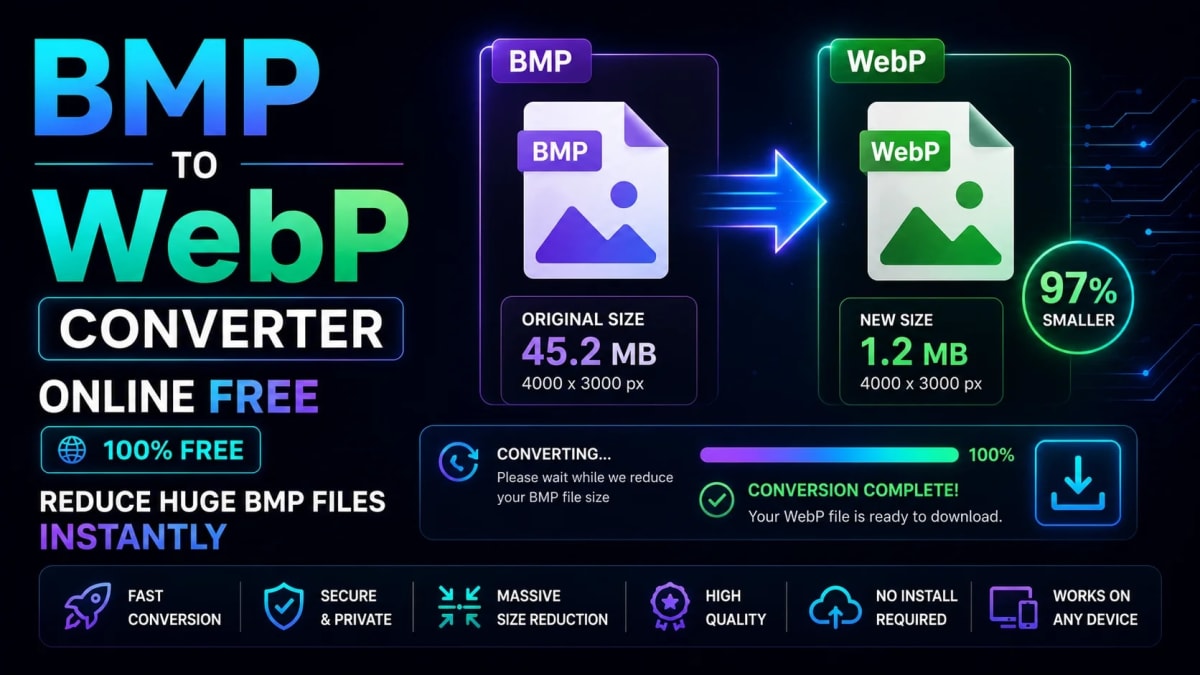
A 1920×1080 screenshot saved as BMP on Windows can easily hit 6MB. The exact same image as a WebP? Under 300KB. That's not a typo BMP files are uncompressed bitmaps that store raw pixel data with zero compression. Every single pixel takes up space, nothing is discarded, nothing is optimised. It's the digital equivalent of storing every ingredient in your kitchen in individual airtight containers, including the air.
BMP was designed in the early days of Windows when storage was measured in megabytes and compression algorithms were computationally expensive. In 2026, there is no good reason to use BMP for anything web-related. Converting BMP to WebP is one of the single highest-impact image optimisations you can make and it takes about thirty seconds.
This guide covers exactly why BMP files are so large, how the conversion works, and the fastest way to do it free without installing any software or uploading your files to a server.
What You'll Learn:
✅ Why BMP files are so large compared to modern formats
✅ How much file size you can realistically save converting BMP to WebP
✅ How to convert BMP to WebP free in your browser no software needed
✅ How to bulk convert multiple BMP files at once
✅ When to use WebP vs PNG vs JPG for different use cases
✅ Why client-side conversion is safer than uploading to a server
BMP vs WebP - The Size Difference Is Staggering
Let's put actual numbers on this. Here's what a typical BMP file looks like compared to its WebP equivalent:
Image | BMP Size | WebP Size | Savings |
|---|---|---|---|
1920×1080 screenshot | 5.9 MB | 280 KB | −95% |
800×600 UI mockup | 1.4 MB | 95 KB | −93% |
400×300 thumbnail | 360 KB | 28 KB | −92% |
2560×1440 wallpaper | 10.5 MB | 620 KB | −94% |
Notice the pattern: BMP to WebP consistently saves 90–95% of the file size. No other format conversion comes close to this ratio. Converting a JPG to WebP saves 25–35%. Converting a PNG saves 30–50%. But BMP? The savings are in a completely different league because you're starting from a completely uncompressed baseline.
If you have BMP files on your website right now even a handful fixing them should be the first thing you do today. The performance impact is immediate and dramatic.
How to Convert BMP to WebP Free - Step by Step
The fastest way to convert BMP to WebP without installing software is using WebToolsHub's Image to WebP Converter. Everything runs in your browser your BMP files never leave your device.
Open the converter. No account needed, no download, no installation. Just open the tool in any modern browser Chrome, Firefox, Edge, Safari all work.
Upload your BMP files. Drag and drop up to 25 BMP files onto the upload zone, or click to open a file picker. You can also paste a BMP from clipboard using
Ctrl+Vif you just took a screenshot.Set quality (85% is fine for most BMP files). For BMP conversions, the quality setting matters less than for JPG you're starting from lossless data, so even 75% WebP quality will look excellent and still save 90%+ of the file size.
Click "Convert All". Watch the status update per file: Queued → Converting → Done. The savings badge shows you exactly how much each file shrank expect to see numbers like "−93%" in green.
Download your WebP files. Download individually or click "Download All as ZIP" to grab the entire batch. The ZIP is named with today's date so you always know which batch is which.
Total time for 10 BMP files: under 60 seconds. The conversion itself is fast because the Canvas API reads the raw BMP pixel data directly no decoding overhead that a server would have.
Why Is BMP So Large? The Technical Reason
BMP (Bitmap) stores image data as a raw grid of pixels. Each pixel in a 24-bit BMP takes exactly 3 bytes one byte each for red, green, and blue. A 1920×1080 image has 2,073,600 pixels. At 3 bytes each, that's 6,220,800 bytes about 5.9MB before any file header overhead.
There is no compression. No algorithm looks for repeated patterns, no clever encoding reduces similar colors to shared references. Every pixel is stored individually, in full, regardless of how similar it is to the pixels next to it.
WebP, by contrast, uses a combination of predictive coding, entropy encoding, and transform-based compression the same techniques used in modern video codecs. It looks at blocks of pixels, identifies patterns and similarities, and encodes them efficiently. The result is dramatically smaller files with no visible quality difference at typical quality settings.
If you want to understand the broader format landscape when to use WebP vs PNG vs AVIF the WebP vs AVIF 2026 comparison covers the tradeoffs in detail.
When You'd Encounter BMP Files in 2026
BMP is rare on modern websites but still shows up regularly in specific workflows:
Windows screenshots and screen captures. The Windows Snipping Tool and older screenshot utilities sometimes default to BMP. If you're documenting software, capturing UI states, or building tutorials from Windows screenshots, you've probably accumulated BMP files without realising it.
Design tool exports. Some older CAD programs, medical imaging software, and industrial design tools export to BMP as their standard format. If you're receiving assets from non-web design workflows, BMP is a common culprit.
Legacy CMS content. Older CMS platforms and internal tools sometimes allowed BMP uploads. If you're migrating a legacy website, you'll likely find BMP files buried in the media library.
Scanned documents. Some document scanners default to BMP output, particularly older enterprise scanning equipment. If you're publishing scanned content online, converting those BMPs is essential.
Game development assets. Some game engines and level editors use BMP for texture maps and UI assets. If you're exporting game content for web display, BMP to WebP is a common conversion need.
BMP to WebP vs BMP to PNG vs BMP to JPG - Which Is Best?
When converting from BMP, you have three realistic modern format options. Here's how to choose:
Convert To | Size Reduction | Quality | Best For |
|---|---|---|---|
WebP | 90–95% | Excellent | Web - default choice |
PNG | 60–75% | Perfect (lossless) | Logos, icons, transparency |
JPG | 85–92% | Good (lossy) | Photos only, no transparency |
For web use, WebP wins on every metric that matters: smaller than PNG, smaller than JPG, supports transparency like PNG, better quality than JPG at equivalent file sizes, and universal browser support in 2026. The only reason to convert BMP to PNG instead of WebP is if you need compatibility with very old software that doesn't support WebP which is increasingly rare.
For a full breakdown of how WebP compares to modern alternatives like AVIF, the WebP quality settings guide covers the exact tradeoffs at each compression level.
Bulk Converting Multiple BMP Files
If you're dealing with a folder of BMP files a common situation when migrating legacy content converting them one at a time is unnecessarily slow. The bulk Image to WebP Converter handles up to 25 files per batch.
Drop all your BMP files onto the upload zone at once. The tool processes them sequentially one at a time which keeps your browser responsive and stable even with large files. Progress updates appear per file so you can see exactly where the batch is at. When all conversions are done, one click downloads a ZIP containing all your WebP files, named to match the originals.
For a detailed walkthrough of the bulk conversion workflow including quality presets, resize options, and ZIP download the bulk image to WebP converter guide covers the full process step by step.
Why Client-Side Conversion Matters for BMP Files
BMP files are large. A folder of 20 BMP screenshots can easily be 100MB+. Uploading that to a cloud converter introduces real problems: slow upload speeds on typical broadband connections, privacy concerns if the files contain sensitive content, and dependency on the converter's server being up and not rate-limiting you.
Because the WebToolsHub converter processes everything client-side using the Canvas API, none of that applies. Your BMP files are read locally by your browser, converted locally, and downloaded locally. The tool handles files up to 20MB each with a 200MB total batch limit covering the vast majority of BMP conversion scenarios without any network dependency.
Verify it yourself: open Chrome DevTools, go to the Network tab, run a BMP conversion, and count the outbound requests. You'll see zero. No upload, no server, no privacy risk.
Frequently Asked Questions
How much smaller will my BMP file be after converting to WebP?
Typically 90–95% smaller. A 6MB BMP screenshot usually becomes a 250–350KB WebP file at 85% quality with no visible quality difference. BMP-to-WebP produces the most dramatic file size reduction of any common image format conversion because BMP starts from completely uncompressed data.
Will converting BMP to WebP reduce image quality?
At 85% quality (the default), the output is visually identical to the original BMP for almost all content. Since BMP is uncompressed, you're converting from perfect source data the WebP compression algorithm has the full original information to work with, which produces better results than re-compressing an already-compressed JPG.
Does BMP support transparency? Will it be preserved in WebP?
Standard 24-bit BMP does not support transparency (alpha channel). 32-bit BMP technically has an alpha channel field but it's rarely used correctly across applications. WebP fully supports transparency if your BMP has alpha data, the converter will attempt to preserve it. For most practical BMP files from screenshots and exports, transparency is not a factor.
Can I convert multiple BMP files at once?
Yes. up to 25 BMP files per batch, with a 20MB per file limit and a 200MB total batch limit. Drop all your files at once, click "Convert All," and download the results as a ZIP. For larger collections, run multiple batches.
Do my BMP files get uploaded to a server?
No. All conversion happens entirely in your browser using the Canvas API. Your BMP files never leave your device no upload, no server processing, no storage. This is especially important for BMP files that often contain screenshots of sensitive work or internal software interfaces.
Is this BMP to WebP converter free?
Yes. completely free, no account required, no usage limits, no watermarks on output files. WebToolsHub is funded by non-intrusive ads, which keeps all tools permanently free.
Convert Your BMP Files - The Payoff Is Immediate
If you have BMP files on your website, they're almost certainly your single biggest page weight problem. A handful of unoptimised BMPs can add 20–30MB to your page load the kind of issue that tanks your Core Web Vitals score and frustrates every user on a mobile connection.
The fix takes minutes. Open the bulk Image to WebP Converter, drop in your BMP files, download the ZIP, replace the originals. Run PageSpeed Insights after — the improvement in your LCP score will be immediate and significant.
No software to install. No files uploaded to a server. No account to create. Just smaller, faster images exactly what your website needs in 2026.
Tagged in
Continue Reading
All Articles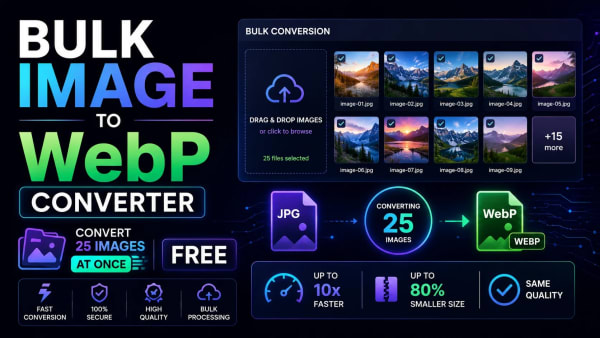

Level Up Your Workflow
Free tools mentioned in this article
Advanced SEO Meta Tag & Open Graph Generator
Generate highly optimized meta tags, Twitter Cards, and Open Graph data for Google and Facebook with real-time visual previews.
JWT Decoder & Verifier
Decode, parse, and verify JWT (JSON Web Tokens) securely in your browser. Validate claims and debug authentication payloads instantly with zero server logs.
Robots.txt & LLMs.txt Generator
Generate robots.txt and llms.txt files instantly with AI bot presets for GPTBot, ClaudeBot, and PerplexityBot. Control who crawls your site in 2026.
CSS to Tailwind CSS Converter
Convert legacy CSS to modern Tailwind CSS utility classes instantly. 100% secure, free, and runs entirely in your browser. Boost your core web vitals today.